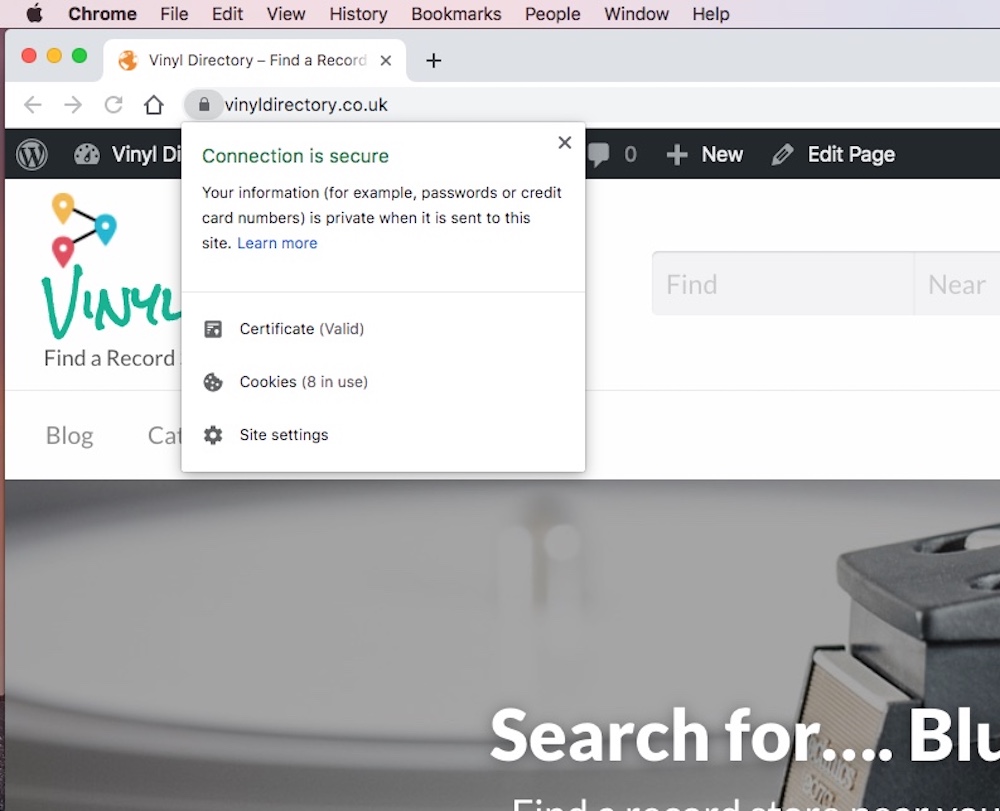
This is a quick tutorial on how to setup your WordPress site to get the benefits of that little padlock you see in your browser address bar. Without this your customers (as well as Google) will have less confidence in the security of your website. For this example I’ll be using vinyldirectory.co.uk as an example site.
**IMPORTANT** This tutorial was created on a new installation of WordPress, using ionos.co.uk as a website host and domain name registrar. I do not offer any guarantees that this tutorial will work with your website configuration and accept zero-liability if you break your website!
Setting Up Your Domain and Cloudflare for your Free SSL Certificate
- Sign up to Cloudflare at https://cloudflare.com (or login if you already have an account).
- On the Cloudflare homepage, select ‘+Add a Site’.
- Enter your site name, for example ‘vinyldirectory.co.uk’
- Choose the ‘Free’ plan. This will give you basic security for your website. You can easily upgrade later for enhanced security features or for high traffic sites later if you wish.
- Cloudflare will now scan your name and identify your current domain records. It will most likely highlight the websites AAAA and A records. Hit ‘Continue’.
- Cloudflare will now ask you to change your domain nameserver records. You will need to login to your domain name provider, identify the nameserver settings for your domain and then change the nameserver settings to the ones provided by Cloudflare. In the case of ionos.co.uk for example you would choose ‘Use Custom Name Servers’ within the Nameserver setting to achieve this.
- Go back to cloudflare.com. Select your domain. Click on Crypto found on the row of icons at the top of the page. Ensure that you have ‘Flexible’ selected in the SSL box at the top of the page. It will probably be selected by default.
Get WordPress Ready for your Free Cloudflare SSL Certificate
You will need to install a plugin to enable Cloudflare to work correctly. This plugin prevents ‘infinite redirect loops’, that will prevent your visitors from viewing your website. There’s no setting to worry about here, just install and activate.
Force All Content to HTTPS
If you have a new website, this may not be necessary, or maybe all plugins and links on your website are already delivered by HTTPS. If not then you can install plugins such as SSL Insecure Content Fixer, which will convert existing links to HTTPS. This is an easy plugin to configure, simply check the ‘Simple’ option first and everything should work, if not, then you can enhance the settings, or disable the plugin.
Check Nameserver & HTTPS Settings
By this point, your certificate should be established with Cloudflare. Go back and see if your nameserver changes have been recognised. You can also us online tools such as mxtoolbox.com to see if your nameserver changes are live.

Within Cloudflare visit the ‘Page Rules’ page and ensure that ‘Always Use HTTPS’ is selected for your domain, if not, create it.

Change Your WordPress Site URL
Go to your WordPress settings (Settings > General) and change the ‘Site Address (URL) ‘ from http:// to https://.
**IMPORTANT** Leave the ‘WordPress Address (URL) as it is, also ensure that you have previously installed and activated the Cloudflare Flexible SSL Plugin. Failure to do this may cause severe trauma, and a broken website.

That’s All Folks!
Hopefully you’ve followed this guide correctly, and if everything is working correctly you now have the padlock showing in the domain address bar in your browser. You now have an HTTPS address and both Google and your website visitors are more confident visiting and ranking your web content.
You may find that it initially appears that you’ve broken your website and it’s not working at all, don’t panic (initially!) It’s potentially a DNS caching issue and your browser / computer hasn’t caught up with the changes yet. Visit your website using incognito / private browsing mode and you may see that all is well. You may also want to try viewing your website through a VPN to check all is well. If after checking your site using these techniques, maybe now you can start to sweat a little (You did make a backup of your site before you started didn’t you?)…
If you’ve followed this and something is not quite right then I’d suggest running your URL through Why No Padlock?. This website will help you analyse your site and identify any problems with mixed content for example, that may require further action.